
A GIF is a short, looping animation format with no sound. Visual loops communicate in seconds through:
- Emotion
- Reactions
- Instructions
Internet culture relies heavily on GIFs for quick expression without video playback controls or audio.
GIF files load quickly and work across nearly all apps, platforms, and devices. Social feeds benefit from compact visuals that auto-play without user interaction.
More than 10 billion GIFs are shared every month through GIPHY, showing consistent demand for looping animations.
Messaging apps, social platforms, forums, blogs, and email campaigns all support GIF playback.
WhatsApp, Instagram, Discord, Reddit, X Twitter, and newsletters commonly feature GIFs for reactions, memes, promotions, and tutorials.
Tools You’ll Need
Creating effective GIFs starts with choosing tools that match skill level, device, and intended use.
Options range across browser-based editors, desktop software, and mobile apps.
Free Online Tools
Online tools work well for quick edits, conversions, and meme-style GIFs. No installation is required, which makes them ideal for casual users and fast production.
EZGIF
EZGIF focuses on practicality and control. Browser-based access allows fast edits without registration.
Many creators rely on EZGIF for correcting playback behavior, resizing files, or converting formats before sharing.
Core actions supported by EZGIF include:
- trimming clips to exact frame ranges
- cropping and resizing animations
- compressing large files for faster loading
- converting WebP or MP4 files into GIF format
Loop repair tools also help solve common issues like partial playback or unwanted pauses.
GIPHY Create
GIPHY Create centers on speed and shareability. Drag-and-drop workflows allow fast meme creation without technical steps.
Built-in creative elements reduce setup time and support expressive visuals.
Practical limits matter during creation:
- maximum duration reaches 15 seconds
- upload size allows files up to 100MB
Reaction clips, short scenes, and social-ready visuals work especially well inside GIPHY Create.
Canva
Canva supports visual consistency and design-heavy GIFs.
Animation templates and brand tools simplify production for marketing and presentation use.
Teams often rely on Canva when colors, fonts, and layout consistency matter.
Key advantages include timeline-based animations and preset social formats that match platform dimensions.
Desktop Tools
Desktop software provides more precision and frame-level control. Tutorials, demos, and polished animations benefit greatly using local applications.
ScreenToGif (Windows)
ScreenToGif combines recording and editing inside one interface. Screen capture works well for tutorials, walkthroughs, and UI demonstrations.
Timeline editing allows removal of unnecessary frames and fine-tuned pacing.
Editing controls allow:
- frame-by-frame deletion
- speed adjustments
- annotation additions
Export options include optimized GIF output for web use.
GIPHY Capture (Mac)
GIPHY Capture focuses on simplicity and speed. Adjustable recording windows allow targeted captures. Short clips convert quickly into shareable GIFs without heavy configuration.
Creators often choose GIPHY Capture for reaction recordings, quick demos, and lightweight workflows.
Photoshop
Photoshop offers full creative control for advanced GIF work. Layering, transparency, and masking allow complex animations. Frame timelines support precision editing across long sequences.
Professional designers rely on Photoshop when visual polish and detailed composition matter more than speed.
Mobile Apps
Mobile apps allow GIF creation without desktop access. Recording, editing, and sharing can happen inside one device, which suits fast reactions and social use.
iOS Options
iOS tools integrate closely with camera features and Live Photos. GIPHY supports recording and effects.
ImgPlay converts videos and Live Photos into looping animations. Shortcuts automates repeated conversions without manual steps.
Loop behaviors supported on iOS include:
- standard looping
- bounce playback
- Native integration improves speed and reliability.
Android Options
Android users benefit from flexible conversion tools. GIPHY and GIF Maker handle basic edits and exports.
WhatsApp includes a built-in option that converts trimmed video clips directly into GIF format during chats.
Chat-based sharing works especially well for casual reactions and messaging.
Making GIFs Using Videos
Video clips remain one of the fastest ways to produce expressive GIFs.
Short motion segments capture reactions, actions, or moments that repeat smoothly without needing sound.
Proper preparation during each step keeps file size manageable while preserving visual clarity.
Step-by-Step Process
Let us see how this process goes, step-by-step.
Choose a Short Clip
Clip length plays a major role in loop quality and loading speed. Shorter clips loop more naturally and keep viewers engaged without distraction.
Ideal durations usually fall between 2 and 6 seconds, since longer animations often feel repetitive.
Common video formats work well for conversion, including:
- MP4
- MOV
- AVI
Upload to a GIF Tool
Once a clip is selected, uploading it into a reliable tool starts the conversion. Browser-based platforms remove the need for software installation and speed up workflow.
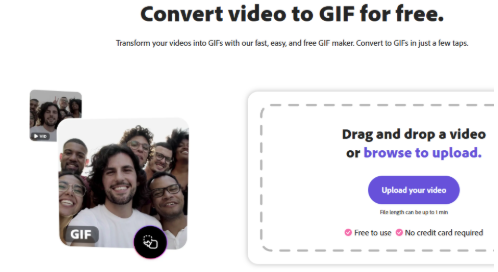
Tools like Adobe Express are excellent for converting your own video to a GIF quickly and intuitively.
Popular tools accept direct uploads and also support drag-and-drop actions.
File limits matter at this stage, especially for larger clips, with GIPHY allowing uploads up to 100MB and a maximum length of 15 seconds.
Trim and Customize
Editing focuses attention on the most relevant motion. Extra frames at the start or end often disrupt looping, so trimming tight improves flow.
Visual elements help communicate intent or humor. Common customization options include:
- Text captions for context or punchlines
- Stickers or simple filters for emphasis
- Playback speed changes to smooth out motion or exaggerate reactions
Set Output Settings
Export settings control how well a GIF performs on different platforms. Width and frame rate determine clarity and file size.
Web sharing typically works best within a specific range, which helps maintain a balance between quality and speed:
- Width between 480px and 720px
- Frame rate set between 10 and 15 fps
Aspect ratio also matters. Square formats suit Instagram feeds, while wider layouts fit blogs or messaging apps better.
Export and Download
Final output should always use GIF format for compatibility.
Some tools default to WebP or PNG sequences, so format checks matter before saving.
Conversion utilities handle format changes if needed. Compression tools lower file size and help animations load faster across platforms.
Creating GIFs Using Images
Image-based GIFs offer full control over each frame.
Static visuals work well for storytelling, comparisons, or meme creation, since timing and order define the final effect.
Image consistency improves smooth playback and reduces visual distractions.
Best Use Cases
Certain formats work especially well when multiple images combine into a loop. Common scenarios include:
- Meme panels that rely on sequential expressions
- Slideshows presenting step-by-step visuals
- Before and after comparisons that alternate states
- Stop-motion projects built frame by frame
Steps Using EZGIF
Process begins by visiting ezgif.com/maker and uploading multiple image files at once. JPG, PNG, and GIF formats all work.
Frame order determines animation flow, while delay settings control speed.
Editing tools help refine output through resizing and cropping, keeping each frame aligned.
Download becomes available immediately after creation.
Using Canva
Design-focused workflows make Canva a strong option for styled animations.
Animated social templates provide structure without manual setup.
Uploaded images drop into frames easily, and timing adjustments control pacing across slides. Export options include direct GIF output for sharing.
Making GIFs on Mobile Devices
Mobile creation allows fast publishing without desktop access.
Built-in cameras and apps simplify recording and conversion, making phones a practical choice for spontaneous reactions or quick tutorials.
iPhone and iPad Options
Several tools support recording and conversion on iOS devices. Popular options include:
- GIPHY Cam for live recording with effects
- ImgPlay for converting videos or Live Photos into loops
- Shortcuts app for automated Live Photo to GIF conversion
Android Options
Android users rely on apps that focus on simplicity.
GIF Maker provides basic editing and conversion features. WhatsApp includes a built-in tool that trims short videos and exports them as GIFs directly inside chats.
Mobile Workflow
Creation usually follows a simple sequence. Media gets recorded or uploaded first. Cropping and trimming refine content length.
Overlays like text, emojis, and filters add meaning or humor. Saving to the camera roll or sharing immediately completes the process.
Screen Recording to GIF
Screen recordings turn software actions into clear visual instructions. Tutorials, demos, and bug reports benefit greatly from looping animations that show actions repeatedly.
Windows
ScreenToGif offers recording and frame-level editing inside one interface.
Users record screen activity, edit frames, then export directly as a GIF.
Windows Game Bar captures screen video, which converts easily afterward using EZGIF.
Mac
GIPHY Capture records adjustable screen areas and trims recordings before export.
QuickTime Player handles screen recording as video, which converts into GIF format through EZGIF afterward.
Optimizing GIFs for Performance
Optimization keeps GIFs usable across platforms with strict limits. Smaller files load faster and reduce sharing issues, especially on mobile connections or inside email clients.
Target File Sizes
Different platforms enforce different limits, so size targets help guide export decisions:
- Email campaigns under 1MB
- WhatsApp under 15MB
- Social media posts under 5MB
- Websites ideally under 10MB
Optimization Tips
Several adjustments reduce file weight without sacrificing clarity.
Frame rate reductions lowethe r total frames. Smaller dimensions reduce pixel count.
Color limitations improve compression efficiency:
- Frame rates set between 10 and 15 fps
- Width kept between 480px and 720px
- Color palettes limited to 128 colors
EZGIF optimization tools also remove redundant frames, cleaning up animations while shrinking size.
Platform Compatibility Notes
Platform behavior affects how GIFs display.
Instagram requires conversion to MP4, which EZGIF or Canva handles easily.
Twitter X converts GIFs into MP4 automatically, and Tweet2GIF reverses that process when needed.
Discord limits uploads to 8MB for free users and 50MB for Nitro subscribers. Email clients perform better with alt text and static fallback images included.
The Bottom Line
Looping animations support humor, reactions, demonstrations, and short-form storytelling. Visual loops communicate faster than text in many digital spaces.
Begin with simple platforms like GIPHY or EZGIF. Advanced design needs justify Canva or Photoshop usage.
Visual quality and loading speed require constant balance. Platform limits should guide size, format, and resolution choices.
